Help / Getting started
Start here
Getting started — install & first protect
Censr watches the screen you're sharing and blacks out secrets — API keys, passwords, tokens, and personal info — before they ever reach your stream, screen-share, or recording. It shows up as a camera in OBS, Zoom, Meet, Teams, and Discord, and can turn itself on automatically when you go live. Everything runs on your Mac — nothing is uploaded.
1. Install
- Open the
.dmgfrom your download email (or getcensr.com). - Drag Censr onto the Applications folder.
- Open Censr from Applications. Because it's notarized by Apple, it opens with no "unidentified developer" warning.
2. Grant Screen Recording
Censr needs permission to see the screen it's protecting. On first launch it asks:
- Click Grant — this opens System Settings → Privacy & Security → Screen Recording.
- Turn Censr on in the list.
- Quit and reopen Censr. macOS only activates the permission after a relaunch — that's why it can seem to ask twice. Reopen once and it's done.
If Censr keeps asking every launch, you likely have an old copy or a stale permission entry. Delete any old Censr from Applications, re-grant once on the current version, and quit/reopen — it'll stick.
3. Approve the camera
Censr installs its own virtual camera so it can appear as a video source. The first time:
- Approve "Censr" in System Settings → General → Login Items & Extensions → Camera Extensions.
- A restart may be needed for that very first install. After that the camera stays installed and updates itself.
4. Run your first protected session
- In Censr, pick a Source — choose Display 1 to protect your whole screen, or a single window.
- Click Start protecting. The big preview fills with your screen, now with bars over any detected secrets.
- Open a terminal and run something with a fake key (e.g.
cat .env) — watch Censr black it out in the preview.
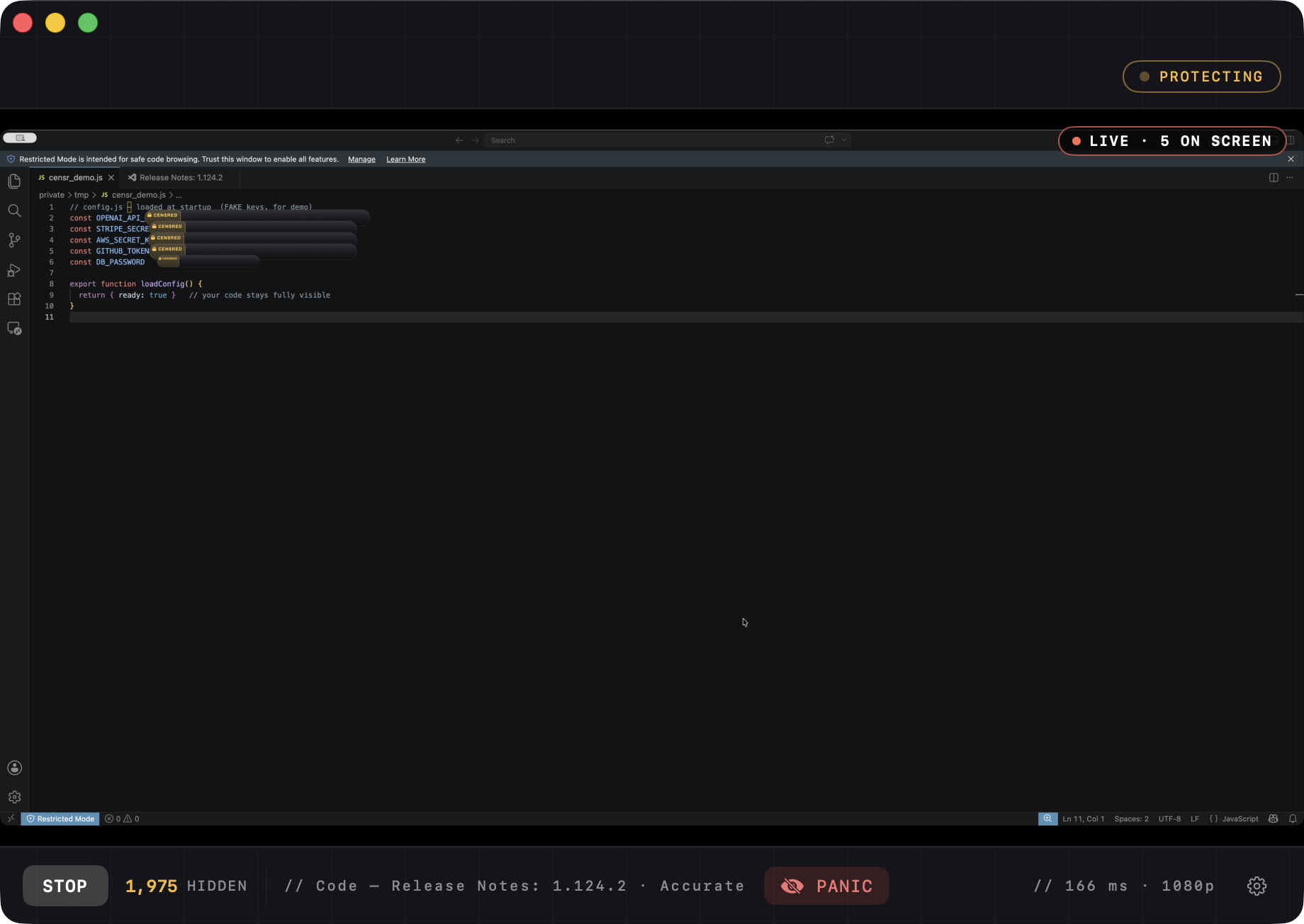
The window at a glance
- Top status pill — Idle (gray) or Protecting (amber).
- The big preview — "what your audience sees": your screen with bars over detected secrets. This is your monitor.
- The dock — Start/Stop, the live "N hidden" count, the Source picker, Fast / Accurate (keep Accurate), Panic, latency/scan stats, and the gear (Settings).
It lives in your menu bar
The Censr menu-bar icon is dim when idle, amber when protecting, red during panic. Click it for status, Start/Stop, Panic, Open, and Quit. Because it lives there, you can close the window entirely and Censr keeps running.
Honest note: Censr is defense in depth, not a 100% guarantee. Pair it with good habits, the panic key (⌘⇧B), and an Always-blur list. Prefer test/throwaway keys on screen when you can.